Guide/Part One · Get started
The Home screen
Home is where every session begins. It greets you, shows your recent work, and gives you a place to start something new.
The first time you open GLASS on a computer, it asks for the license key from your alpha sign-up email (see Your license key).
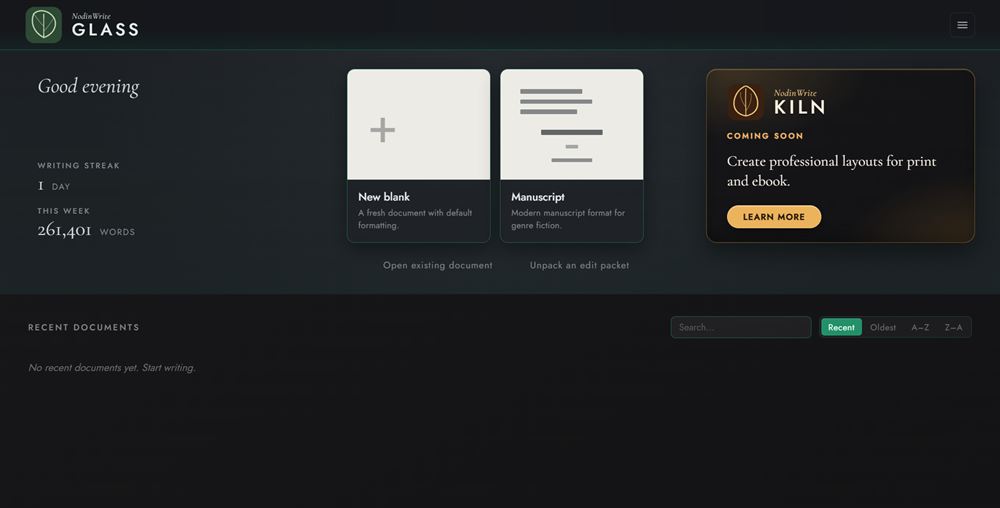
Across the top of Home you'll see:
- A greeting with your Writing streak and your word count for This week.
- Two cards for starting a document, New blank and Manuscript, with Open existing document, Import a document, and Unpack an edit packet below them. See Import a document.
- A card for KILN, a companion layout app in development. Learn more opens its page on the NodinWrite website.
Below them is Recent documents, which you can search and sort by Recent, Oldest, A–Z, or Z–A. The Settings button (☰) at the top right opens Preferences. Beside it, the Help button (?) opens the same list as the Help menu: Keyboard Shortcuts, Copy Diagnostics, Open Log Folder, About GLASS, Documentation, and Report a Problem.
Until you have recent documents, Home offers Open a sample manuscript, a short book with three chapters, a footnote, and planning notes to explore, plus links to the Draft and Review tours in this guide. The sample opens as an untitled document; close it without editing and it goes away without asking to save.
If a document can't be opened, a message at the top of Home says why and what to do next, and you can dismiss it with its ✕. When GLASS has a backup of that document, the message also offers Open the backup copy. See Crash recovery.
If GLASS closed unexpectedly while you had unsaved work, for example after a crash or a power cut, a Recovered section appears above your recent documents with that work waiting. See Crash recovery.