Guide/Part Three · Structure a manuscript
Chapters & headings
Use a Chapter Marker and GLASS gives it a heading, a fresh page, and a margin ribbon, and numbers it for you.
- Put the cursor in the line that starts the chapter. That line becomes the chapter heading, so use an empty line or the line with the chapter's title.
- Choose Insert ▸ Chapter Marker. An inline editor opens right on that line, with a control bar beneath it.
- Type the chapter title in the Title (optional) field if you want one. The number is filled in automatically from the chapter's position.
- Set the shared look with the other controls: alignment, the word before the number (Chapter or No word), the number style (Words, Numerals, Roman, or No number), the case of a spelled-out or Roman number (Title, UPPER, or lower), and the separator before the title (a colon, a dash, or a space). These apply to every chapter at once.
- Press Enter or click away to finish. Esc discards changes to the title.
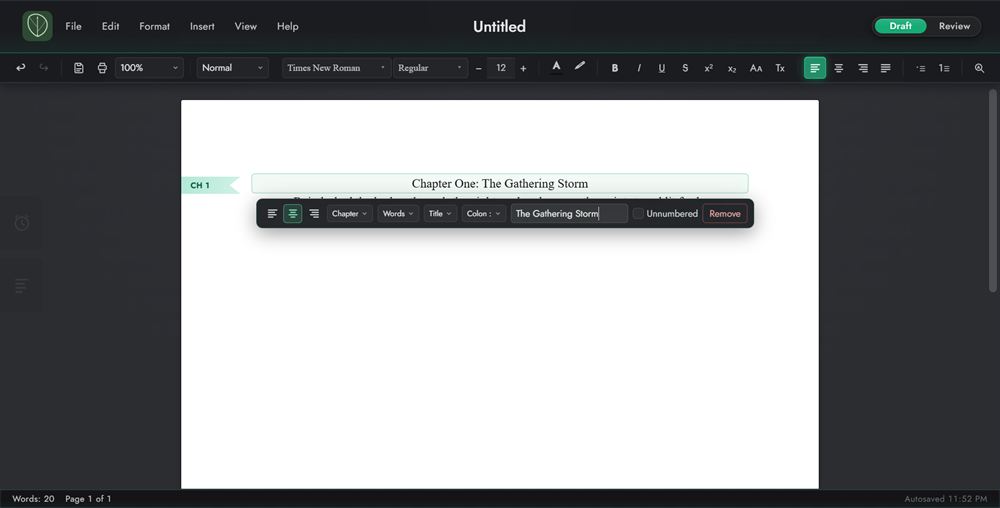
The bar also has an Unnumbered checkbox, which leaves this chapter out of the number sequence (see Reorder chapters & interludes), and a Remove button, which turns the heading back into ordinary text.
A chapter always begins on a new page. You can't type in a chapter heading directly: double-click it (or click its margin ribbon) to reopen the editor. To turn a chapter back into ordinary text without opening the editor, right-click its heading and choose Remove Chapter Marker.
Chapters are listed in the Contents panel, where you can reorder them and add a planning note to each.
You never type the chapter number. It follows the chapter's place in the book, so reordering renumbers everything automatically.